Key takeaways
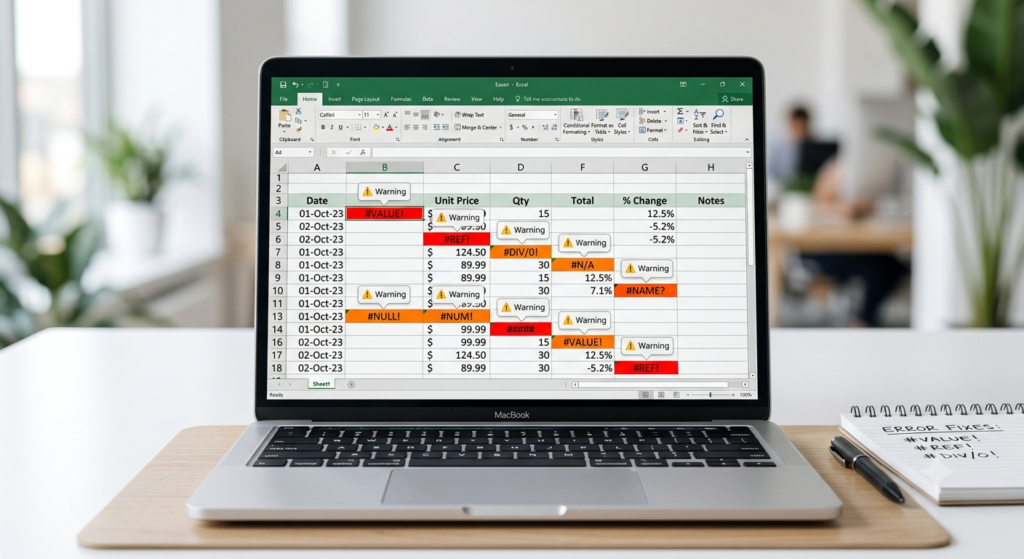
- Excel error codes are specific diagnostic messages, not permanent failures: each points to a distinct problem such as wrong data type, broken reference or impossible maths.
- #DIV/0! means division by zero or a blank cell, #VALUE! a wrong data type, #REF! a deleted reference and #NAME? a typo or missing quotation marks.
- #N/A means a lookup value was not found, #NUM! an impossible number, #NULL! an unintended space between ranges, and ##### simply a column too narrow.
- Prevent errors with data validation, IFERROR wrappers, named ranges and tables; complex, patched workbooks are better redesigned by specialists than fixed cell by cell.
INTRODUCTION
You are building a spreadsheet, everything looks correct, and then a cell suddenly shows #VALUE! or #REF! staring back at you. Sound familiar? Signs of #ERROR in Excel can feel cryptic, but each one is actually a very specific message telling you exactly what went wrong. In this tutorial, you will learn what every major Excel error means, why it appears, and, most importantly, how to fix it even if you are not a spreadsheet expert. By the end, you will read error codes the way experienced analysts do: as helpful clues, not roadblocks.
Why Excel Error Codes Actually Help You
Before diving into each error, it helps to understand why Excel displays them at all. Rather than silently returning a wrong number, Excel stops and flags the problem so you can catch it early. Each error type points to a different category of issue: wrong data type, broken reference, impossible math, or mistyped formula name. Therefore, learning to recognize each one saves you hours of guessing.
Also, Excel errors are not permanent failures. Every single one can be resolved once you know what to look for. So instead of feeling frustrated when an error appears, treat it as a starting point for diagnosis.
The Complete Excel Error Code Reference
Below is every core Excel error explained clearly, followed by how to fix it.
#DIV/0! – Division by Zero Error
This error appears when a formula tries to divide a number by zero or by an empty cell. For example, =A1/B1 returns #DIV/0! if B1 is 0 or blank.
HOW TO FIX IT: Wrap the formula with IFERROR or IF to handle the zero case:
=IFERROR(A1/B1, 0) or =IF(B1=0, “N/A”, A1/B1)
Additionally, check whether your source data is missing values that should be populated before the formula runs.
#VALUE! – Wrong Data Type Error
Excel shows #VALUE! when a formula receives the wrong type of input. For instance, trying to add a text cell to a number cell will trigger this error immediately.
HOW TO FIX IT: First, check each cell referenced in the formula and confirm it contains the expected data type. Numbers must be formatted as numbers, not as text. The VALUE() function can convert text-formatted numbers to real numbers when needed.
#REF! – Invalid Cell Reference Error
This error means a formula is pointing to a cell that no longer exists. It commonly appears after rows or columns are deleted, breaking references in formulas that depended on them.
HOW TO FIX IT: Undo the deletion if recent (Ctrl+Z), then rebuild the formula with correct references. Alternatively, use named ranges instead of direct cell references so that deletions do not break your formulas going forward.
#NAME? – Unrecognized Formula Name Error
Excel returns #NAME? when it cannot recognize a word in your formula. This usually happens because of a typo in the function name, a missing colon in a range, or quotation marks used incorrectly around text.
HOW TO FIX IT: Double-check the spelling of every function name. Also, make sure text strings inside formulas are wrapped in double quotation marks. For example, =SUMIF(A:A, yes, B:B) should be =SUMIF(A:A, “yes”, B:B).
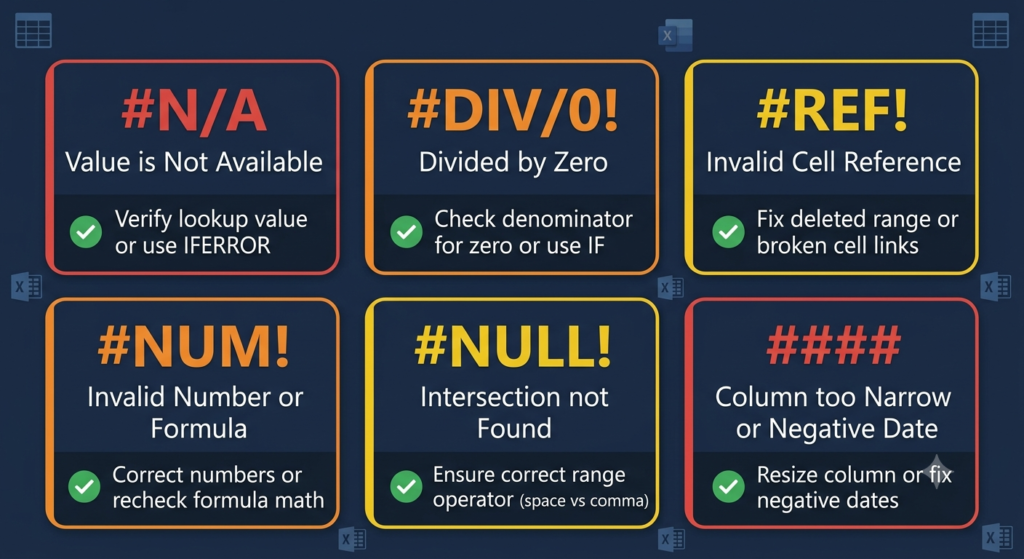
#N/A – Value Not Available Error
This error appears most often in lookup formulas like VLOOKUP or MATCH when the searched value cannot be found in the lookup range. It literally means “Not Available.”
HOW TO FIX IT: Use IFERROR to return a custom message or blank instead:
=IFERROR(VLOOKUP(A1, B:C, 2, 0), “Not Found”)
Furthermore, verify that the search value and the lookup column have matching formats. A number stored as text will not match a true number, even if they look identical on screen.
#NUM! – Invalid Number Error
Excel returns #NUM! when a formula produces a number that is too large, too small, or mathematically impossible. For example, asking Excel to calculate the square root of a negative number triggers this error immediately.
HOW TO FIX IT: Review the inputs going into the formula. For financial functions like IRR or RATE, this error often signals that the inputs do not produce a valid mathematical result. Try adjusting your initial estimate argument or checking that cash flow signs are correct.
#NULL! – Empty Intersection Error
This error occurs when a formula uses a space between two ranges (instead of a comma or colon), creating a request for an intersection that does not exist. It is less common but easy to introduce by accident.
HOW TO FIX IT: Check your range references for unintended spaces. For example, =SUM(A1:A5 B1:B5) should be =SUM(A1:A5, B1:B5) with a comma separating the two ranges.
##### – Column Too Narrow (Not Technically an Error)
Technically, ##### is not an error code. However, it confuses many users. It simply means the column is too narrow to display the value or date.
HOW TO FIX IT: Double-click the column border in the header row to auto-fit the width. Consequently, the full value appears instantly with no formula changes needed.
Preventing #ERROR in Excel Errors Before They Happen
Fixing errors is one skill, but preventing them saves even more time. Use data validation to restrict cell inputs to specific types or ranges. Build formulas with IFERROR wrappers from the start so errors never surface to the end user. Also, use named ranges and tables instead of raw cell references to protect formulas from breaking when data moves.
For teams managing complex workbooks, having specialists in Excel audit your file structure can prevent systematic errors before they reach critical reports. According to research published by the European Spreadsheet Risks Interest Group, spreadsheet errors affect a significant percentage of business-critical models worldwide.
When You Need More Than a Fix Guide
Understanding error codes is a strong foundation, but some spreadsheet problems run deeper than a single broken cell. When your workbook has dozens of interconnected formulas, inherited data from multiple sources, or a history of quick-fix patches layered over time, errors start multiplying faster than you can resolve them individually.
In those situations, hiring specialists in Excel to redesign your workbook structure is far more efficient than troubleshooting cell by cell. A professional can build a custom Excel spreadsheet from scratch with clean architecture, built-in error handling, and a logic that scales as your business grows. Moreover, automating your Excel spreadsheets eliminates the repetitive manual steps that cause most data-type and reference errors in the first place.
Sapphire Business Technology has delivered solutions for over 500 satisfied clients across industries, helping businesses replace broken, patchwork spreadsheets with robust, automated tools built to last. If your team is spending more time fixing Excel than using it, our Excel specialists are ready to help you change that.