Key takeaways
- A corporate finance team replaced budget files scattered across several spreadsheets with one Financial Planning and Budget Monitoring System built in Excel and VBA.
- The system centralises financial projections, controls expenses and compares planned against actual results in a single model.
- Monthly closings became 70% faster and forecasting accuracy improved by 35%.
- Sapphire Business Technology delivered the system in four business days for Finance, Planning, Accounting and Management.
Excel budget control should help a finance team look ahead. For one corporate finance department, it did the opposite. Every month-end, the team was buried in spreadsheets: cross-checking numbers, chasing department heads for updated figures and rebuilding the same reports as the month before.
Budget data sat in several files, and people redid the forecast sums by hand. As a result, leaders never had one view of the numbers they could trust. The team did not need a better spreadsheet. It needed a proper Excel budget control system.
Our team built it in Excel with VBA in four business days. Below, we explain what changed and how you can use the same logic on your own budget.
Project snapshot
| Item | Detail |
|---|---|
| Industry | Corporate finance and business management |
| Solution | Financial Planning and Budget Monitoring System |
| Tools | Excel, VBA |
| Timeline | 4 business days |
| Departments | Finance, Planning, Accounting, Management |
| Impact | 70% faster monthly closings; +35% accuracy in forecasting |
The problem: Excel budget control spread across disconnected files
Before the project, different people updated the budget files on their own. Expense tracking lived in one file, and planned versus actual lived in another. Meanwhile, the team changed forecasts by hand, formula by formula, every single month.
This set-up created three recurring problems:
- Slow monthly closings. Pulling data together from several files and checking the gaps took days of staff time. That time could have gone into analysis instead.
- Weak forecasts. Typing and copy-and-paste invite human error. One wrong formula could throw off a whole projection.
- No live view. Managers often made decisions on figures that were already a few weeks old by the time they arrived.
Budget work is meant to look forward. Here, however, it had become a chore that looked backwards and ate up the team’s month-end.
How we built the Excel budget control system with VBA
We kept Excel as the base, because the finance team already knew it well. Then we added the structure the old files lacked, plus VBA to do the dull work. The new Excel budget control system rests on three pillars: one home for financial projections, tight control of expenses, and a clear check of planned against actual results.
One model instead of several files. The team now works in a single shared workbook. Every input feeds the same model, so nobody pulls numbers from separate files any more.
VBA for the repeat work. Custom VBA code now handles the tasks that used to need manual effort. For example, it merges data entries and reworks projections whenever new figures come in. The team therefore stopped spending hours on typing and checking.
A reporting layer built around variance. Departments rarely spend exactly what they planned. So we designed the reports to show planned versus actual clearly, at a glance. Nobody has to dig through raw data to spot a problem.
A forecasting dashboard leadership could trust
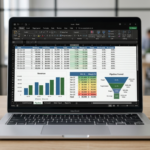
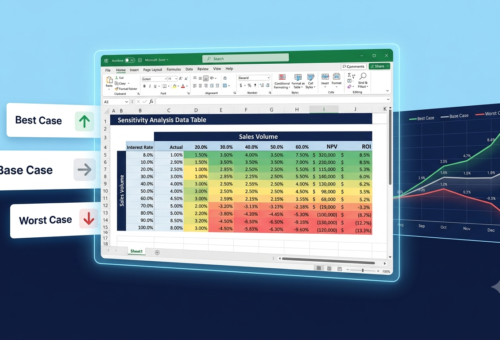
The most visible part of the project was a forecasting dashboard in Excel. Leadership no longer waits for a report compiled by hand at month-end. Instead, decision-makers can check current budget status, expense trends and forecast projections whenever they need to.
This shift changes habits as well as speed. When budget owners know their numbers are visible straight away, they have a reason to keep them accurate all month. Before, the incentive was to tidy things up just before the deadline.
The dashboard also stays inside a tool the team already uses daily. That matters, because nobody had to learn new software to benefit from the project.
Results: 70% faster closings and sharper forecasts
The impact was clear. Monthly closings became 70% faster, which freed much of the time the team once spent merging and checking files. Staff now put that time into analysis, such as spotting spending trends and flagging risks early.
Forecasting accuracy also improved by 35%. This came from removing manual errors and building every projection on the same data set, kept up to date. For a business that plans hiring, investment and cash flow from its forecasts, that gain reaches well beyond Finance.
Four departments felt the change directly: Finance, Planning, Accounting and Management. Each of them depends on accurate, timely budget data. Because one shared system replaced several disconnected ones, the benefit reached all four at once.
A centralised Excel budget control system with VBA automation made monthly closings 70% faster and forecasts 35% more accurate, and Sapphire Business Technology delivered it in four business days.
How to set up Excel budget control for your team: step by step
You can start this on your own, without writing any code. The steps below follow the same logic as the project: first centralise, then automate, and report last.
- Collect every budget file. List each spreadsheet used for budgets, expenses and forecasts. Note who updates it and how often.
- Create one input table. Use one row per entry, with columns for date, department, category, type (planned or actual) and amount. Select the range and press Ctrl+T to turn it into an Excel table.
- Separate inputs, workings and reports. Keep the input table on its own sheet. Then put the formulas on a second sheet and the leadership view on a third, so nobody types over a formula.
- Build the variance view. For each department and category, calculate actual minus planned, and the same difference as a percentage. Then add conditional formatting so overspends stand out at a glance.
- Choose how to merge the files. If each department sends figures in a different layout, agree one layout first; otherwise, any macro will break. If every file already follows the same layout, use a VBA macro to merge them each month.
- Update forecasts from actuals. A simple starting rule is forecast equals actual to date plus the remaining planned months. Recalculate it every time new actuals arrive, rather than once a quarter.
- Build one dashboard sheet. Show budget status, expense trends and the forecast on a single screen that leadership can open at any time.
- Measure the close. Time your next month-end before you switch, then again after. If the new process is not clearly faster, look for the step where people still copy and paste.
Why Excel budget control works best when centralised first
The lesson from this project is not that finance teams must leave Excel for costly platforms. Often, the real win lies in rebuilding what already exists into one tidy, automated model.
Microsoft’s own guide to getting started with VBA in Office says that automating repeat tasks is one of the most common uses of VBA. It also suggests a practical threshold: if you make the same change more than ten or twenty times, automating it may be worth it.
A monthly close passes that test easily, because the same merge repeats for every department, twelve times a year. However, the same guide also advises checking Excel’s built-in tools before writing code. In our experience, that advice matters most for Excel budget control. If the input layout is messy, VBA simply repeats the mess faster. That is why step 5 above comes before any macro.
In short: centralise the data, automate the repetitive work, and make the results visible as soon as they change.
Need the same result without building it yourself?
The steps above will get a small budget model into shape. When several departments, forecast rules and month-end deadlines come into play, though, an expert build usually saves weeks of trial and error.
Our Excel specialists can design and automate the whole system for you. Learn more about our Excel automation and VBA service, and tell us which budget files your team still stitches together by hand.
This case study was written by Sapphire Business Technology, drawing on its experience with 500+ clients and 2,000+ projects in Excel, VBA and Power BI.