Key takeaways
- Keyboard shortcuts save significant time in Excel, reduce cognitive load and cut the risk of accidental clicks overwriting formulas in large spreadsheets.
- For navigation, Ctrl + Arrow keys jump to the last non-empty cell, Ctrl + Home returns to A1 and Ctrl + Page Up/Down switches worksheet tabs.
- For editing and formatting, Ctrl + D fills down, F2 edits the active cell, and Ctrl + 1 opens the full Format Cells dialog without touching the ribbon.
- For formulas, Alt + = applies AutoSum, Ctrl + T creates a table, and F4 cycles absolute and relative references; mastering even ten shortcuts makes a noticeable difference.

INTRODUCTION
If you use Microsoft Excel regularly, the mouse is slowing you down. Every time your hand moves from the keyboard to the mouse and back, you lose a few seconds. Multiply that by hundreds of actions across a full workday, and the total time lost becomes genuinely significant. Excel keyboard shortcuts exist precisely to eliminate that friction.
This tutorial covers the most impactful Excel keyboard shortcuts used by professionals, organized by category, so you can start using them immediately, regardless of your current skill level.
Why Excel Keyboard Shortcuts Change How You Work
Speed is the obvious benefit, but it is not the only one. Using Excel keyboard shortcuts consistently also reduces cognitive load. When navigation and formatting actions become muscle memory, your mental focus stays on the data and the analysis, not on the mechanics of operating the software.
Furthermore, by knowing Excel keyboard shortcuts reduces the risk of accidental clicks, especially in large, complex spreadsheets where a misplaced mouse click can overwrite a formula or deselect a range you spent time building.
The goal of this guide is not to memorize every shortcut in existence. Instead, it is to identify the ones that deliver the highest return on the small investment of learning them.
Excel Keyboard Shortcuts for Navigation
Moving efficiently through a spreadsheet is the foundation of fast work. These shortcuts help you jump around large datasets without scrolling.
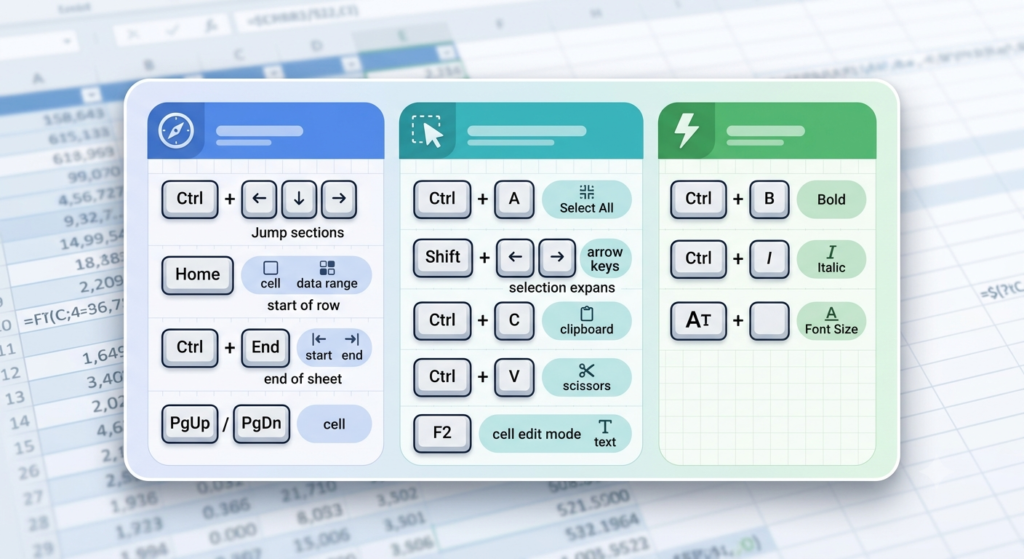
- Ctrl + Home: Go to cell A1 (beginning of the sheet)
- Ctrl + End: Jump to the last used cell in the spreadsheet
- Ctrl + Arrow Keys: Jump to the last non-empty cell in any direction
- Ctrl + Page Up / Page Down: Switch between worksheet tabs
- Ctrl + G or F5: Open the “Go To” dialog for precise navigation
For example, pressing Ctrl + Down Arrow inside a column of data instantly takes you to the bottom of that column. Additionally, holding Shift while doing so selects all cells in between, which is useful for selecting large ranges in one keystroke.
Selection and Editing Excel Keyboard Shortcuts
Once you can navigate fast, the next priority is selecting and editing data efficiently.
- Ctrl + Shift + Arrow Keys: Select from current cell to last non-empty cell in a direction
- Ctrl + Space: Select the entire column
- Shift + Space: Select the entire row
- Ctrl + D: Fill down (copies the top cell into the selected range below)
- Ctrl + R: Fill right (copies the leftmost cell across the selected range)
- Ctrl + Z: Undo the last action
- Ctrl + Y: Redo the last undone action
- F2: Edit the active cell directly (without mouse-clicking into the formula bar)
Moreover, pressing Ctrl + Enter after typing a value confirms the entry and keeps the current cell selected, rather than moving down, which is particularly useful when filling in several cells across different locations.
Formatting Shortcuts That Speed Up Presentation
Formatting is one of the most mouse-intensive tasks in Excel. Consequently, these shortcuts save a surprising amount of time across a typical workday.
- Ctrl + B: Bold
- Ctrl + I: Italic
- Ctrl + U: Underline
- Ctrl + 1: Open the Format Cells dialog (full formatting options)
- Alt + H + H: Open the fill color picker
- Ctrl + Shift + $: Apply currency format
- Ctrl + Shift + %: Apply percentage format
- Ctrl + Shift + #: Apply date format
One of the most underused shortcuts is Ctrl + 1. It opens the complete Format Cells dialog, giving you instant access to number formats, borders, alignment, and protection, all without touching the menu ribbon.
Power Shortcuts for Formulas and Data
These Excel keyboard shortcuts target the analytical side of spreadsheet work, where the real productivity gains live.
- Alt + =: AutoSum the selected range
- Ctrl + `: Toggle between showing formula text and formula results
- F4: Repeat the last action, or toggle absolute/relative cell references inside a formula
- Ctrl + Shift + Enter: Enter an array formula (legacy method)
- Ctrl + T: Convert a range to an official Excel Table
- Ctrl + F: Open Find
- Ctrl + H: Open Find and Replace
In particular, F4 is one of those Excel keyboard shortcuts that experienced users press almost automatically. When building formulas, pressing F4 cycles through $A$1, A$1, $A1, and A1 references without retyping anything.
According to Microsoft’s official Excel support documentation, proficient keyboard shortcut use is one of the most recommended practices for improving efficiency in spreadsheet work.
Conclusion – From Shortcuts to Expert-Level Spreadsheets
Learning these Excel keyboard shortcuts is a practical investment. Even mastering ten of them will produce a noticeable change in how quickly and confidently you work. The real gains come over time, as the shortcuts move from conscious thought into automatic habit.
That said, shortcuts are just the beginning. Truly powerful Excel work, such as building automated custom spreadsheets, creating dynamic dashboards, or connecting spreadsheets to live business data, requires a deeper level of expertise. Sapphire Business Technology has helped over 500 clients transform their spreadsheet environments into powerful business tools, from basic automation to full custom Excel solutions. When your spreadsheets need to do more than shortcuts can offer, professional support is the next right step.
Content created by Sapphire Business Technology, based on over 2,000 successful client engagements in business technology consulting, Excel development and other microsoft solutions.