Key takeaways
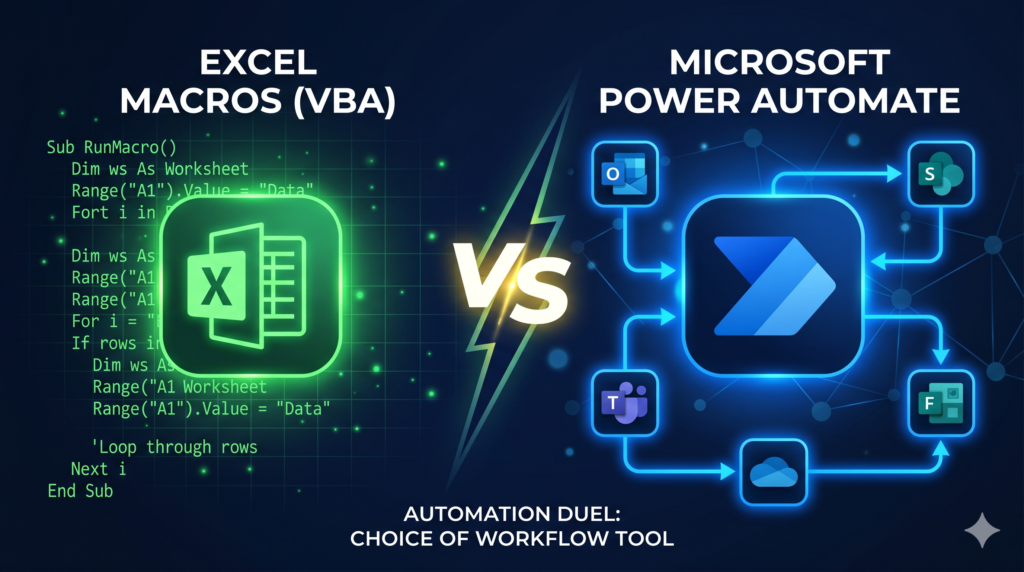
- The choice is about fit, not which tool is better: Excel Macros suit processes that stay inside one workbook, while Power Automate suits workflows that connect several systems.
- Excel Macros are VBA programs that run locally and offline, handling precise cell-level logic quickly, but someone with VBA knowledge must build and maintain them.
- Power Automate is a cloud-based, low-code tool that connects Excel to services such as Outlook, SharePoint, Teams and Salesforce, triggered by events like form submissions or incoming emails.
- Many businesses use both together: a Macro handles the internal Excel logic, while Power Automate manages the connections between systems and departments.
Choosing the best tool to Automate Excel Spreadsheets
If you have ever sat in front of a screen clicking the same buttons over and over, you already know the frustration that automation is built to solve. However, choosing the wrong tool can cost you time, money, and headaches. So, should you automate Excel spreadsheets using Macros, or is Power Automate the smarter choice for your workflow?
Both tools are powerful. Both solve real problems. But they work very differently, and understanding when to use each one will change how your team operates. This tutorial walks you through the key differences, practical use cases, and the decision-making logic you need to pick the right path.
Excel Macros vs Power Automate at a glance
The table below compares Excel Macros and Power Automate on where they run, what they connect to and who can build them.
| Criterion | Excel Macros (VBA) | Power Automate |
|---|---|---|
| What it is | Small VBA programs stored inside the spreadsheet | Microsoft cloud platform connecting apps, services and data |
| Where it runs | Locally; works offline | In the cloud; depends on internet connectivity |
| Skills needed | VBA knowledge to build and maintain | Visual low-code builder; no coding required |
| Scope | Processes that happen entirely inside one Excel file | Workflows across multiple departments or systems |
| Connections | Does not communicate easily with other applications | Hundreds of apps natively, including SharePoint, Outlook and Salesforce |
| How it starts | A single click runs the whole sequence | External events such as form submissions or email arrivals |
| Dependencies | No external service required | Microsoft licensing and cloud connectivity |
| Best for | Precise cell manipulation, custom formulas, monthly report clean-up | Connecting Excel to email, CRM or Teams |
What Are Excel Macros and What Do They Do Best?
Excel Macros are small programs written in VBA (Visual Basic for Applications) that live inside your spreadsheet. They run locally, they are fast, and they are deeply connected to everything Excel does natively.
If your automation lives entirely inside Excel, Macros are often the right choice. For example, think about a monthly report where you clean raw data, apply formulas, format cells, and generate a summary tab. That entire sequence can run with a single click using a Macro.
Additionally, Macros work offline, require no external service, and can handle complex cell-level logic with precision. For finance teams, inventory managers, or analysts building custom spreadsheets, Macros deliver speed and control that is hard to beat.
However, Macros have real limits. They do not communicate easily with other applications. Furthermore, they require someone with VBA knowledge to build and maintain them, which is a skill gap in many businesses.
When Power Automate Takes the Lead
Power Automate is a cloud-based platform from Microsoft designed to connect apps, services, and data across your entire digital environment. Therefore, it goes far beyond what a spreadsheet can do alone.
Imagine this: a customer fills out a form online, that response automatically creates a row in Excel, sends a confirmation email, and notifies your team in Microsoft Teams. That entire flow runs without a single human click. This is where Power Automate truly shines.
Moreover, Power Automate uses a visual, low-code interface. As a result, non-technical users can build and adjust flows without writing a single line of code. It connects to over 400 applications natively, including SharePoint, Outlook, Salesforce, and more.
On the other hand, Power Automate depends on internet connectivity and Microsoft licensing. Also, for tasks that are purely mathematical or cell-specific within Excel, it can feel unnecessarily complex.
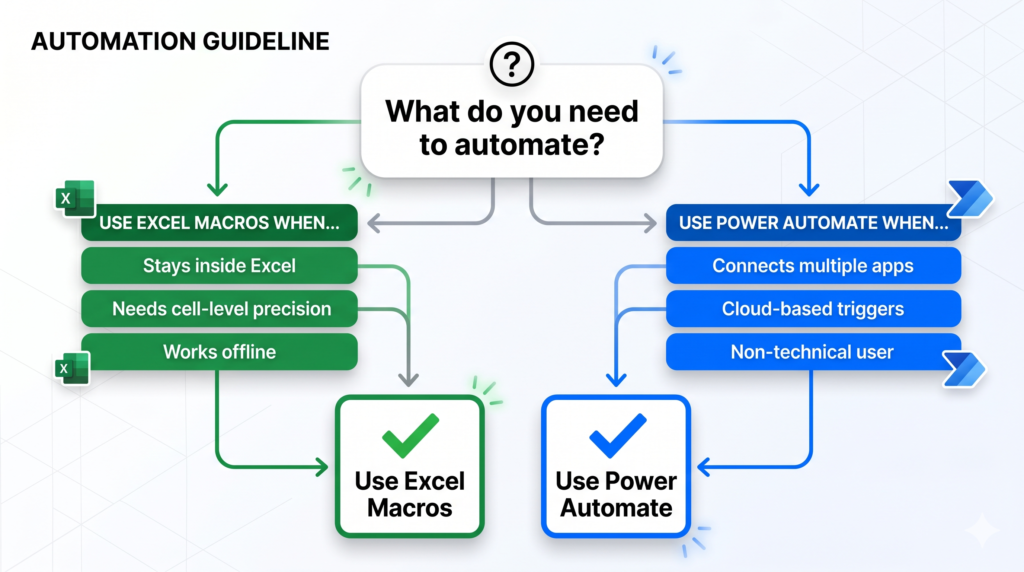
How to Choose the Right Tool for Your Business
Consequently, the decision between Macros and Power Automate is not about which one is better. It is about which one fits your specific scenario.
Use Excel Macros when:
- Your entire process happens inside one Excel file
- You need precise cell manipulation or custom formulas
- Your team works offline or in a controlled local environment
- You want to build custom Excel spreadsheets with automated steps
Use Power Automate when:
- You need to connect Excel to other tools like email, CRM, or Teams
- You want to trigger automations from external events (form submissions, email arrivals)
- Your team has limited technical skills and needs a visual builder
- The process involves multiple departments or systems
In summary, many businesses actually use both tools together. A Macro handles the internal Excel logic while Power Automate manages the connections between systems. With this strong combination, you not only automate Excel spreadsheets, but also full workflows.
“According to Microsoft, organizations using Power Automate report saving an average of several hours per week on repetitive manual tasks, allowing teams to focus on higher-value work.”
Source: Microsoft Power Automate Official Blog
The Professional Advantage You Should Not Ignore
Finally, while tutorials and guides can take you far, there is a ceiling to what self-implementation achieves. Building robust, scalable automation requires architecture decisions, error handling, and an understanding of how your specific data flows connect.
This is where professional guidance makes all the difference. When trying to automate Excel spreadsheets, a poorly built Macro can corrupt data. Meanwhile, an incorrectly configured Power Automate flow can trigger hundreds of unwanted emails or overwrite critical records.
The good news is that getting expert help does not mean losing control. On the contrary, it means your automation is built right the first time, scales as your business grows, and is documented so your team can manage it confidently.
Accepting the era of automation
Automation is not a luxury anymore. It is a competitive necessity. Whether you choose to automate Excel spreadsheets through Macros, leverage the cross-platform power of Power Automate, or combine both, the key is making an informed choice aligned with your real business needs.
At Sapphire Business Technology, we have guided over 500 satisfied clients through exactly these decisions. Our team of Excel, Power BI and Microsoft 365 specialists, will help you design, build, and implement automation that works reliably, scales with your business, and delivers measurable results from day one.
Ready to stop doing things manually? Reach out to Sapphire Business Technology and let’s build something smarter together.
Content created by Sapphire Business Technology, based on expertise developed across more than 500 satisfied clients.