Key takeaways
- Excel slows down with large datasets because it recalculates the whole workbook on every change and loads all data into memory, so volatile formulas and full-column references multiply the load.
- Six fixes keep 100k+ row files responsive: manual calculation, INDEX/MATCH or XLOOKUP instead of INDIRECT/OFFSET, Excel Tables, Power Query, narrower conditional formatting and VBA button triggers.
- If the file architecture is the problem, consolidate raw data into one source table and summarise it with pivot tables or Power Pivot, which handles tens of millions of rows.
- Consider professional help or a move to Power BI when files regularly take over 30 seconds to open, several users edit at once, or data comes from multiple external sources.

When should you consider automation for your Excel Spreadsheet?
You paste 110,000 rows into Excel and the whole thing freezes. The spinning cursor appears. You wait. You close it. You reopen it. The cycle repeats.
This is one of the most common pain points for analysts and operations teams working with real-world data. Excel was not designed to be a database, but that does not mean it cannot handle large datasets, it just needs to be set up correctly.
This tutorial shows you practical, step-by-step techniques to keep Excel responsive and accurate even when your data grows well beyond 100,000 rows. You will also learn when it is time to consider starting to automate excel spreadsheets that are used frequently with tools built for that scale.
First, Understand Why Excel Slows Down
Excel recalculates everything in a workbook every time a cell changes. Moreover, it loads all data into memory at once. Therefore, when you have volatile formulas like INDIRECT, OFFSET, or full-column references such as A:A spread across a large file, every single change triggers a recalculation cascade.
Additionally, conditional formatting applied to entire columns, excessive named ranges, and linked charts all add processing weight. Consequently, a 100k-row file can behave like it has 10 million rows if built carelessly.
Understanding this is the first step to fixing it.
Practical Steps to Automate Excel Spreadsheets at Scale
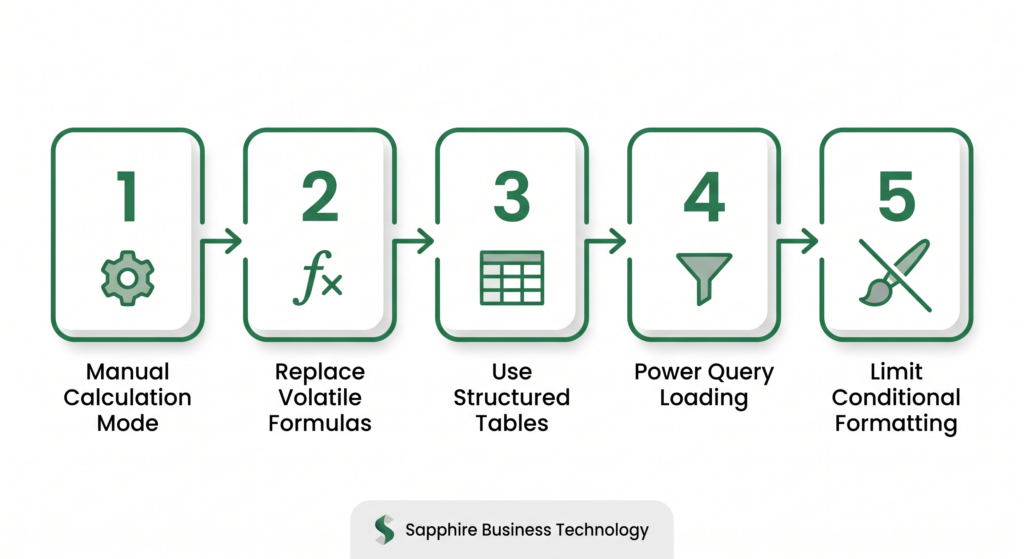
The following techniques directly reduce memory load and processing time. Furthermore, each one can be applied without rebuilding your file from scratch.
1. Switch to Manual Calculation Mode
Go to Formulas > Calculation Options > Manual. This way, Excel only recalculates when you press F9. As a result, every cell edit no longer triggers a full recalculation.
2. Replace Volatile Formulas
Replace INDIRECT and OFFSET with INDEX/MATCH or XLOOKUP wherever possible. These are non-volatile, meaning they only recalculate when their direct dependencies change and not on every sheet action.
3. Convert Data to Tables (Ctrl + T)
Structured tables make references more efficient. Additionally, they allow Power Query to load only what is needed rather than scanning the entire sheet.
4. Use Power Query for Data Loading (VBA is an option too)
Instead of pasting raw data directly, use Power Query (Data > Get Data) to import and transform before loading. This keeps transformations outside the sheet’s memory footprint, which significantly improves performance.
5. Limit Conditional Formatting Scope
Apply conditional formatting only to actual data ranges rather than full columns. For example, use $A$2:$A$100000 instead of A:A or even better, define names to table columns.
6. Convert formulas to VBA button triggers
Converting formulas/calculations to VBA button triggers are very underrated when you are trying to automate Excel spreadsheets. VBA triggers are fast when well coded with limits and variables only consuming memory after being triggered and stopping right after it.
When Excel Needs a Smarter Structure
Sometimes the issue is not Excel’s settings but the file architecture. For instance, if you are using multiple VLOOKUP calls across sheets to merge data, that alone can make a large file unbearable.
Instead, before you start a big plan to automate excel spreadsheets consider consolidating all raw data into one source table and using pivot tables or Power Pivot to summarize it. Power Pivot, in particular, can handle tens of millions of rows using a compressed in-memory engine called VertiPaq, far beyond standard Excel’s capacity.
According to Microsoft’s official support documentation on Excel performance, “reducing the number of volatile functions and using efficient lookup functions are among the most impactful steps for large workbooks.”
Signs It Is Time for Professional Help
Even with all optimizations applied, some workbooks grow beyond what Excel should be handling alone. Therefore, recognizing these signals early prevents lost hours and data errors:
- The file takes more than 30 seconds to open regularly
- Multiple users need to edit or view the data simultaneously
- You are building workarounds to avoid triggering recalculations
- Data is coming from multiple external sources that need to stay synchronized
In these cases, a professional review of your spreadsheet architecture or a migration to Power BI can eliminate the problem at the root rather than patching it repeatedly.
Already decided to Automate Excel Spreadsheets?
Handling large datasets in Excel is absolutely possible but only when the file is built with performance in mind. By switching to manual calculation, replacing volatile formulas, using Power Query or VBA and applying structured tables, most 100k-row files become manageable again.
That said, if your team is spending hours keeping spreadsheets alive instead of using their data to make decisions, the real cost is not the crashed file. It is the time lost. Sapphire Business Technology specializes in building and automating Excel spreadsheets that scale with your business, with solutions tailored for real operational demands.
More than 500 satisfied clients trust our work because we do not just fix the symptom, we fix the structure.
Content created by Sapphire Business Technology, specialists in Excel, Power BI and Microsoft 365 enviroment with over 500 satisfied clients.