
Key takeaways
- A custom Excel spreadsheet for HR can handle leave tracking, headcount and onboarding in one workbook, giving small teams an operational backbone without a large software investment.
- In the Leave Tracker, =NETWORKDAYS(D2,E2) counts working days automatically, colour-coded statuses show approvals at a glance, and COUNTIFS summarises approved leave by type.
- A Headcount sheet using COUNTIFS and a PivotTable by department and employment type lets you refresh a headcount report in seconds, and can support a monthly turnover rate.
- A reusable onboarding checklist with dropdowns for task owner and completion, plus a COUNTIF progress bar, stops new-hire tasks getting lost across emails and memory.
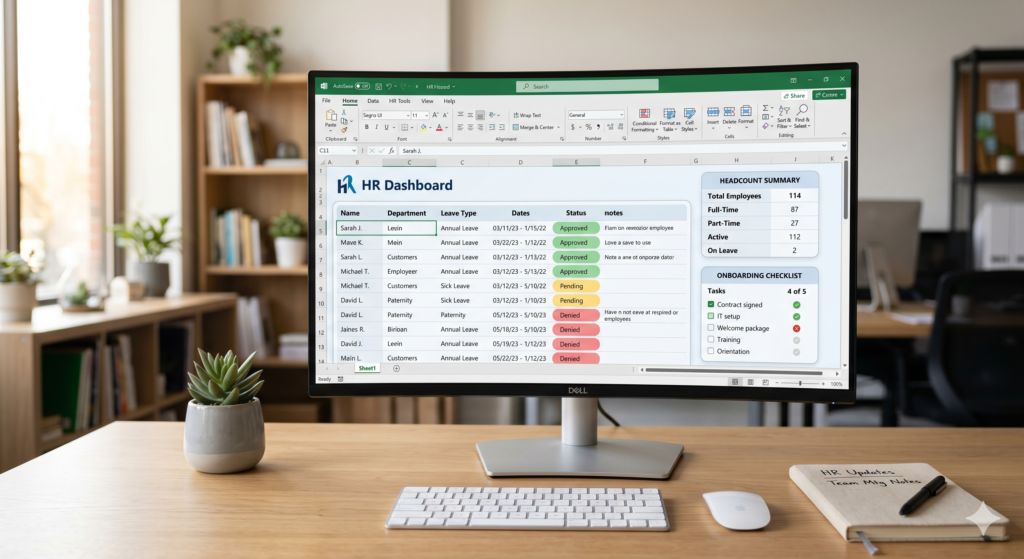
A custom Excel spreadsheet for HR is a single workbook that handles leave tracking, headcount and onboarding, with sheets for absences, the current workforce and new-hire tasks, giving small teams an operational backbone without a large software investment.
Managing people is one of the most important jobs in any company and also one of the most complex. HR teams deal with dozens of moving parts every single day: who is on leave, how many people are actually on the team, and whether new hires are getting properly onboarded. When none of this is centralized, things fall through the cracks fast, this is where a custom Excel spreadsheet for HR is 100% needed.
The good news is that you can build a custom Excel spreadsheet for HR that handles all three of these tasks efficiently. This tutorial walks you through each one step by step, so even if you have never built a structured spreadsheet before, you will be able to follow along and get results quickly.
Setting Up Your Leave Tracking Sheet
The first thing most HR professionals need is a reliable way to monitor employee absences. A leave tracking spreadsheet does not need to be complicated to be effective.
Start by creating a new sheet called “Leave Tracker.” Set up the following column headers in Row 1:
- Employee Name
- Department
- Leave Type (Vacation / Sick / Personal)
- Start Date
- End Date
- Total Days
- Status (Approved / Pending / Denied)
To calculate total days automatically, use a simple formula in the “Total Days” column:
=NETWORKDAYS(D2,E2)
This formula counts only working days between the start and end date, which is exactly what you need. Furthermore, you can apply conditional formatting to the “Status” column to color-code each entry; Green for approved, yellow for pending, and red for denied. This makes it immediately clear at a glance where each request stands.
Additionally, you can add a summary table on the side using COUNTIF formulas to show how many leaves of each type have been approved in the current month. For example:
=COUNTIFS(C:C,”Vacation”,G:G,”Approved”)
However, keep in mind that as your team grows, this sheet can become difficult to manage manually. That is when a more structured solution starts to make sense.
Is your leave tracker getting harder to manage as the team grows? Tell us how you record absences today and we will talk through a more structured setup.
Building a Headcount Dashboard
Next, your HR spreadsheet should include a clear picture of your current workforce.
A headcount dashboard answers the basic questions: how many people are on the team, by department, and by employment type?
Create a second sheet called “Headcount.” Your base table should include:
- Employee ID
- Full Name
- Department
- Role / Title
- Employment Type (Full-time / Part-time / Contractor)
- Start Date
- Active (Yes / No)
To count active employees by department, use COUNTIFS:
=COUNTIFS(C:C,”Marketing”,G:G,”Yes”)
Moreover, a pivot table built on top of this data will save you enormous time. Select your entire headcount table, go to Insert > PivotTable, and build a summary that shows total headcount by department and employment type. Therefore, when leadership asks for a headcount report, you can refresh the pivot in seconds instead of counting rows manually.
One useful addition is a “Turnover Rate” calculation at the top of the sheet. For example, if you track exit dates in a separate column, you can calculate monthly turnover with a simple ratio formula comparing exits to average headcount.

Simple Excel spreadsheet for HR with onboarding view.
Creating an Onboarding Checklist Template
Onboarding is where many companies lose momentum with new hires. When tasks are scattered across emails and memory, things get missed. Consequently, new employees feel lost and disengaged before they even get started.
Your third sheet, call it “Onboarding Template” as it should serve as a reusable checklist for every new hire. Build the following columns:
- Employee Name
- Task Description
- Assigned To (HR / Manager / IT)
- Due Date
- Completed (Yes / No)
- Notes
Pre-fill the “Task Description” column with your standard onboarding steps:
- Send welcome email
- Set up workstation and system access
- Complete payroll and benefits forms
- Schedule orientation meeting
- Assign onboarding buddy
- Review company policies and handbook
- Complete first 30-day check-in
To make this template reusable, use data validation on the “Assigned To” and “Completed” columns. Go to Data > Data Validation and set up a dropdown list. This ensures clean, consistent data every time.
Finally, you can use a progress bar formula to show how far along each onboarding process is. Use COUNTIF to count completed tasks divided by total tasks, then apply a data bar conditional format to visualize completion percentage directly in the cell.
| Sheet | What it tracks | Key formula or feature |
|---|---|---|
| Leave Tracker | Employee, department, leave type, start and end dates, total days and status | =NETWORKDAYS(D2,E2) for working days; COUNTIFS summary by leave type |
| Headcount | Employee ID, name, department, role, employment type, start date and active flag | COUNTIFS by department; PivotTable by department and employment type |
| Onboarding Template | Task, owner, due date, completion and notes for each new hire | Dropdowns through data validation; COUNTIF progress bar with a data bar |
Source and Reference
For further reading on HR best practices and Excel use in people operations, visit the Society for Human Resource Management (SHRM) at: https://www.shrm.org
SHRM provides extensive guidance on HR systems, compliance, and workforce planning that complements what you can build with Excel.
A Solid Start Requires the Right Foundation
Building a custom Excel spreadsheet for HR is a smart and accessible first step for small teams. Leave tracking, headcount management, and onboarding checklists in a single workbook give HR professionals a real operational backbone without a large software investment.
That said, as your team scales, the manual upkeep of spreadsheets can become a bottleneck. Data integrity issues, version control problems, and the risk of human error grow alongside your headcount. At that point, having a professional solution built specifically for your company’s structure and processes. It becomes not just convenient, but necessary.
Sapphire Business Technology has helped more than 500 clients build smarter, more automated Excel solutions tailored to their real operational needs. If you are ready to take your HR spreadsheet beyond the basics, our team of Excel specialists is here to help you get there.
Is spreadsheet upkeep growing with your headcount? Tell us how your HR data is organised today and what you need to report on.
Frequently asked questions
What is a custom Excel spreadsheet for HR?
How do I count leave days automatically in Excel?
How do I build a headcount report in Excel?
What should an onboarding checklist include?
When does an HR spreadsheet need a professional solution?
Content created by Sapphire Business Technology over 500 satisfied clients through Excel, Power BI and others Microsoft 365 softwares.