Key takeaways
- Microsoft Power Apps is a low-code Power Platform tool for building custom business apps with drag-and-drop tools, connecting to Excel, SharePoint, SQL Server, Dataverse and hundreds of other services.
- Canvas apps give full layout control for task-specific tools such as inspection forms, while model-driven apps are generated from Dataverse tables for complex processes like case management.
- Power Apps suits repetitive spreadsheet or email-based processes, backlogged IT teams and fast prototypes, but not high-performance apps needing complex algorithms, heavy real-time processing or sophisticated custom UI.
- To start, sign in at make.powerapps.com, create a canvas app, model-driven app or template, connect a data source, build a screen, then test and publish it.
Understanding Microsoft Power Apps
Building a custom business app used to require a full development team, months of work, and a significant budget. Today, Microsoft Power Apps changes that equation entirely. With a low-code approach, your team can create functional, connected applications without writing thousands of lines of code. However, knowing when it truly makes sense to use Power Apps is just as important as knowing how it works. This guide walks you through the essentials, so you can make an informed decision for your organization.
What Is Microsoft Power Apps?
Microsoft Power Apps is a low-code development platform that allows users to build custom business applications using visual, drag-and-drop tools. It is part of the Microsoft Power Platform, alongside Power BI, Power Automate, and Power Virtual Agents. Together, these tools form an integrated ecosystem for business productivity.
With Power Apps, you can connect to data sources like Excel, SharePoint, SQL Server, Dataverse, and hundreds of other services. Furthermore, apps built in Power Apps run on both desktop browsers and mobile devices, making them highly flexible for distributed teams. Even users with limited technical backgrounds can create working applications within hours. That said, more complex solutions still benefit from professional guidance.
Canvas Apps vs. Model-Driven Apps
Power Apps offers two main development styles, and choosing the right one matters.
Canvas Apps give you full visual control over the layout. You start with a blank canvas and place elements exactly where you want them, like designing a slide in PowerPoint. They are ideal for task-specific tools such as inspection forms, approval workflows, or data entry screens.
Model-Driven Apps, on the other hand, are built around your data structure. The interface is largely auto-generated based on the tables and relationships you define in Dataverse. Therefore, they work best for more complex business processes like case management, project tracking, or CRM-style applications.
Choosing between them depends on your data complexity and how much UI control you need. Additionally, both types integrate natively with Microsoft 365, which is a major advantage for businesses already in that ecosystem.
When Microsoft Power Apps Actually Makes Sense
Not every business problem needs a full custom-coded solution. Low-code platforms like Power Apps are most valuable in specific situations.
First, when your team has a repetitive manual process tied to spreadsheets or email chains, Power Apps can digitize it quickly. Second, when a department needs a tailored tool but IT resources are limited or backlogged, a low-code approach reduces dependency and speeds delivery. Third, when you need to prototype and test an idea fast before committing to a full build, Power Apps lets you validate concepts cheaply.
However, it is equally important to know the limits. Power Apps is not the best choice for high-performance applications requiring complex algorithms, heavy real-time data processing, or sophisticated custom UI design at scale. In those cases, professional software development remains the stronger path.
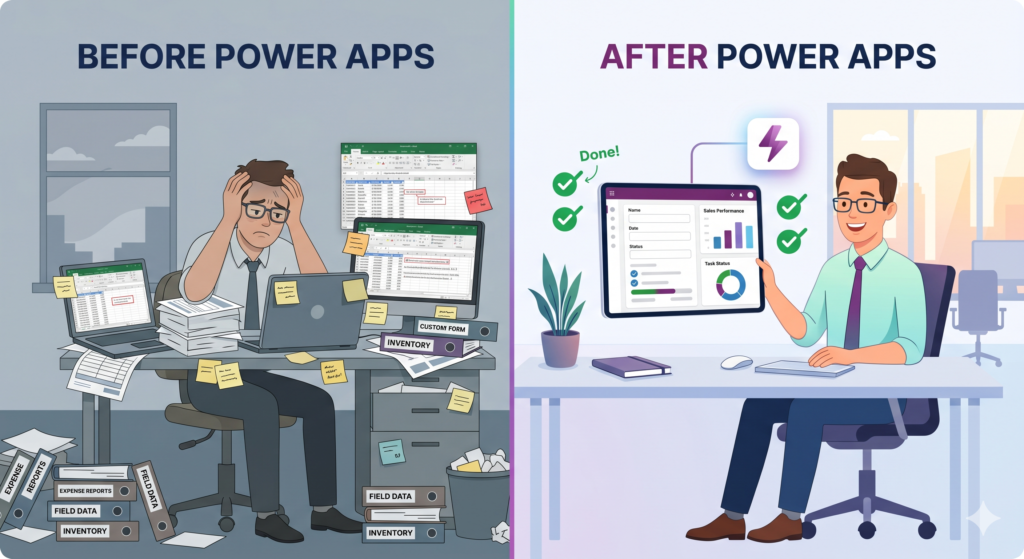
Consider a field service team that currently fills out paper inspection reports and then re-enters that data into a spreadsheet manually. With Power Apps, you can build a mobile app that captures the data on-site, attaches photos, and syncs directly to SharePoint or a database in real time. Consequently, data entry errors drop, and report turnaround time improves significantly.
Another common example involves HR teams managing onboarding checklists through email. A simple canvas app can replace that workflow with a structured, trackable, and automated process connected to Microsoft Teams. These are practical wins that do not require any advanced coding skills to achieve.
Getting Started with Microsoft Power Apps
Starting with Power Apps is straightforward if you have a Microsoft 365 business subscription, as many plans already include access. Here is a simple path to begin:
- Visit make.powerapps.com and sign in with your Microsoft account.
- Select “Create” and choose between a Canvas App, a Model-Driven App, or start from a template.
- Connect your first data source, for example, an Excel file stored on SharePoint or OneDrive.
- Use the visual editor to build your first screen with form fields and a gallery to display records.
- Preview, test, and then publish your app to share it with your team.
Microsoft offers a strong library of tutorials and templates to help beginners get comfortable. Moreover, the learning curve for basic apps is genuinely accessible to non-developers.
According to Microsoft’s official documentation, Power Apps has enabled organizations across industries to reduce application development time by up to 74%, based on a Forrester Total Economic Impact study commissioned by Microsoft.
Conclusion
Microsoft Power Apps puts real application development capability in the hands of business users, not just developers.
For many common business challenges, from digitizing paper forms to automating approval flows, it delivers results faster and at a lower cost than traditional development. Nevertheless, every organization’s needs are different, and getting the most out of the Power Platform often requires knowing where to start and how to structure your data correctly.
If you want to explore how Power Apps can fit your specific workflows, the specialists at Sapphire Business Technology are ready to help. With over 500 satisfied clients and deep expertise across the Microsoft Power Platform, our team can assess your needs, design the right solution, and deliver results your business can rely on.
Content created by Sapphire Business Technology, based on our expertise serving over 500 satisfied clients across business technology and Microsoft solutions.