Key takeaways
- For new workbooks in Excel 365 or Excel 2021, XLOOKUP is the best default: it looks in any direction, has built-in error handling and survives column changes.
- VLOOKUP only works when the lookup column is leftmost in the range, and it breaks easily when columns are inserted or deleted because it uses a fixed column number.
- INDEX MATCH combines two functions to look left and stay stable when columns shift, making it the best alternative in Excel versions that do not support XLOOKUP.
- Many specialists recommend moving to XLOOKUP for all new projects while keeping INDEX MATCH as a backup skill for legacy Excel environments.
INTRODUCTION
If you have ever tried to pull data from one spreadsheet into another, chances are you have run into VLOOKUP. For years, it was the go-to lookup function in Excel. However, Excel has evolved significantly, and today finance and data professionals have three powerful options: VLOOKUP, INDEX MATCH, and XLOOKUP.
Understanding the difference between XLOOKUP vs VLOOKUP in Excel is not just a technical detail. It is a decision that affects how reliable, flexible, and maintainable your spreadsheets will be. This tutorial walks you through all three functions, explains when to use each one, and includes practical examples to guide you.
XLOOKUP vs VLOOKUP vs INDEX MATCH at a glance
The table below summarises how the three lookup functions compare on the points that matter most when building reliable spreadsheets.
| Criterion | VLOOKUP | INDEX MATCH | XLOOKUP |
|---|---|---|---|
| Lookup direction | Vertical only; cannot look left | Works regardless of column order; can look left | Any direction: left, right, up or down |
| How the result is located | Fixed column index number | INDEX returns the position that MATCH finds | Separate lookup and return arrays |
| Inserting or deleting columns | Breaks easily | Will not break when columns shift | Resilient; does not depend on column numbers |
| Excel versions | Older versions included | Older versions that lack XLOOKUP | Excel 365, Excel 2021 and later |
| Ease of use | Familiar to most teams | Harder for beginners; longer syntax | Clean and easy to read and update |
| Extra capabilities | Searches top to bottom only | Maximum flexibility in complex models | Built-in if_not_found, wildcards, returns multiple columns |
| Best for | Small, stable workbooks with the lookup column on the left | Complex financial models and legacy Excel environments | New projects, dashboards and workbooks that will grow |
What Is VLOOKUP and When Does It Work?
VLOOKUP is the most traditional one, it stands for Vertical Lookup. It searches for a value in the first column of a range and returns a value from a specified column to the right.
Basic syntax:
=VLOOKUP(lookup_value, table_array, col_index_num, [range_lookup])
Example: You have a list of employee IDs in column A and their salaries in column C. You want to find the salary for employee ID 1042.
=VLOOKUP(1042, A2:C100, 3, FALSE)
This formula looks for 1042 in column A and returns the value in the third column (column C).
When VLOOKUP works well:
- Your lookup column is always the leftmost column in your range.
- You are working with smaller, relatively stable datasets.
- Your team is already familiar with it and the workbook does not need to scale.
Limitations of VLOOKUP:
- It cannot look to the left. If your return column is to the left of your search column, VLOOKUP will not work.
- It breaks easily when columns are inserted or deleted, since it relies on a fixed column number.
- It only searches vertically, from top to bottom.
INDEX MATCH – The Flexible Classic
INDEX MATCH is not a single function. Instead, it is a combination of two: INDEX, which returns a value from a specific position in a range, and MATCH, which finds the position of a value in a range.
Basic syntax:
=INDEX(return_range, MATCH(lookup_value, lookup_range, 0))
Example: Using the same scenario, finding the salary for employee ID 1042, with salary data in column B and IDs in column C (reversed order):
=INDEX(B2:B100, MATCH(1042, C2:C100, 0))
Notice that INDEX MATCH works regardless of column order. This is one of its biggest advantages.
When INDEX MATCH is the right choice:
- You need to look left, meaning your return column is to the left of your search column.
- You are working in older versions of Excel that do not support XLOOKUP.
- You need a highly reliable formula that will not break when columns shift.
- You are building complex, multi-layered financial models where flexibility matters.
Limitations of INDEX MATCH:
- It requires understanding two functions simultaneously, which makes it harder for beginners.
- The syntax is longer and slightly more complex to write.
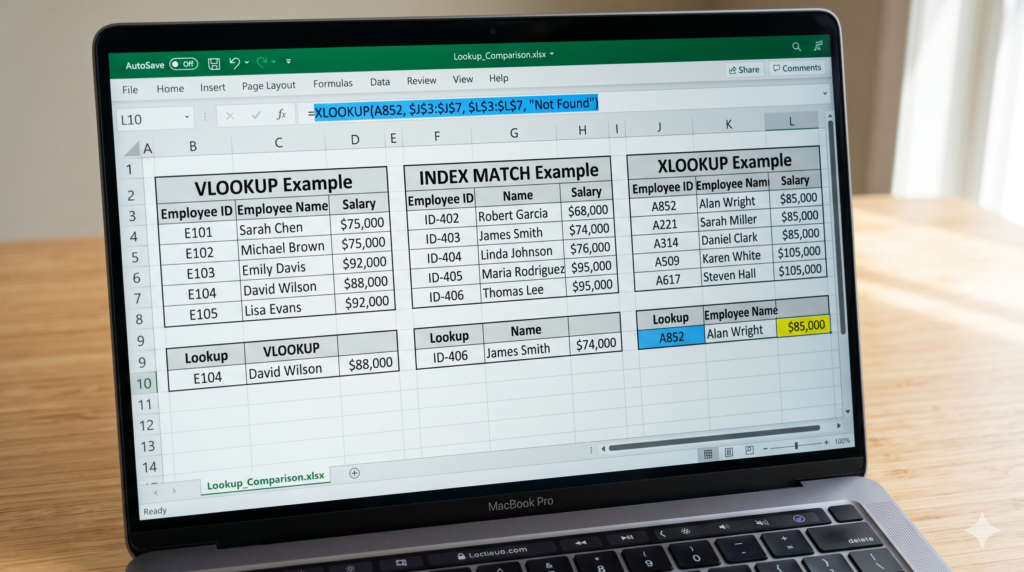
XLOOKUP – The Modern Standard
XLOOKUP is the newest of the three and was designed specifically to fix the weaknesses of VLOOKUP. It is available in Excel 365, Excel 2021, and later versions.
Basic syntax:
=XLOOKUP(lookup_value, lookup_array, return_array, [if_not_found], [match_mode], [search_mode])
Example: Finding the salary for employee ID 1042:
=XLOOKUP(1042, C2:C100, B2:B100, “Not found”)
What makes XLOOKUP superior in most modern scenarios:
- It can look in any direction, left, right, up, or down.
- It has a built-in error handler through the [if_not_found] argument, so you do not need to wrap it in IFERROR.
- It does not depend on column numbers, making it far more resilient to structural changes.
- It supports wildcard and approximate matches natively.
- It can return multiple columns at once, which is particularly useful in financial reporting.
When XLOOKUP is the best option:
- You are using Excel 365 or Excel 2021.
- You want a clean, maintainable formula that is easy to read and update.
- Your spreadsheet may grow or change structure over time.
- You are building dashboards, automated reports, or tools that others will use.
One limitation: if your organization still uses older versions of Excel, XLOOKUP will not be available and INDEX MATCH becomes your best alternative.
EXTERNAL REFERENCE
Microsoft’s official support documentation covers VLOOKUP, XLOOKUP and INDEX MATCH in detail, including all argument options, wildcard behaviour, and a comparison with older lookup functions. A reliable resource for understanding the full capabilities of all three functions
Comparing All Three – A Quick Decision Guide
Here is how to decide which function to use based on your situation:
Use VLOOKUP if:
Your lookup column is always on the left, your Excel version is older, and the workbook is simple and unlikely to change.
Use INDEX MATCH if:
You need to look in any direction, you are working in Excel versions prior to 2021, or you are building complex models that require maximum formula stability.
Use XLOOKUP if:
You have access to Excel 365 or Excel 2021, you want a clean and modern formula, and your workbook needs to scale or be maintained by others.
In practice, many specialists recommend transitioning fully to XLOOKUP for all new projects while keeping INDEX MATCH as a backup skill for legacy environments.
CONCLUSION
The debate between XLOOKUP vs VLOOKUP in Excel is, ultimately, about choosing the right tool for your specific situation. VLOOKUP is familiar but limited. INDEX MATCH is powerful and flexible but requires more technical knowledge. XLOOKUP combines the best of both worlds and is increasingly becoming the standard for professionals who work with data every day.
Knowing which lookup function to use is a sign of growing Excel maturity. However, applying these functions correctly inside complex financial models, automated reports, or scalable dashboards requires experience and structured thinking from experienced professionals in order to scale your operations and calculation upon it.
Sapphire Business Technology supports more than 500 clients in building custom Excel spreadsheets and Power BI solutions tailored to their actual business needs. If your team is ready to stop working around limitations and start building tools that work correctly from the start, our Excel specialists are here to help.