Key takeaways
- Most slow Excel workbooks follow predictable patterns, such as volatile formulas, excess conditional formatting, external links, broken named ranges and hidden objects, and can be fixed without rebuilding.
- Start with a diagnostic: switch calculation to manual to see whether formulas are the bottleneck, check the file size, and press Ctrl + End to find excess formatted rows.
- The highest-impact fixes are replacing volatile formulas like INDIRECT and OFFSET with INDEX or direct references, and restricting conditional formatting rules to the actual data range.
- Further gains come from breaking unneeded external links, deleting #REF! names and hidden objects, sharing PivotTable caches, using manual calculation strategically and saving large files as .xlsb.

INTRODUCTION
If your Excel file takes forever to open, freezes while scrolling, or crashes when you add a formula, you are not alone. Slow workbooks are one of the most common frustrations for professionals who rely on spreadsheets every day. Fortunately, most performance issues follow predictable patterns and they can be fixed.
In this tutorial, you will learn how to diagnose what is dragging your file down and apply 8 targeted fixes that actually work. Whether you are managing a financial model, a sales tracker, or a data dashboard, these steps will help you automate Excel spreadsheets in a faster, more reliable way.
Why Does Excel Slow Down?
Before jumping to solutions, it helps to understand the root causes. Excel calculates every formula, renders every object, and loads every connection each time a change is made. Consequently, a workbook with hundreds of volatile formulas, embedded images, and external links can bring even a modern machine to its knees.
Common culprits include:
- Volatile formulas recalculating constantly (such as TODAY(), NOW(), INDIRECT(), OFFSET())
- Excessive conditional formatting rules accumulated over time
- Linked external data sources that time out
- Unused named ranges and broken references cluttering the file
- Large numbers of embedded objects like images or charts placed across multiple sheets
Understanding the cause is the first step. Therefore, start with a proper diagnostic before making any changes.
Step 1: Run a Quick Diagnostic
Open the workbook and navigate to File > Options > Formulas. Under “Calculation options”, temporarily set Workbook Calculation to Manual. This immediately tells you whether formulas are the bottleneck: if the file becomes fast right away, volatile formulas are your primary problem.
Additionally, check the file size. A healthy, data-only workbook rarely exceeds 5 MB. If yours is 30 MB or more without embedded media, something is hiding inside and often thousands of invisible formatting cells or ghost objects left behind from copy-paste operations.
Use Ctrl + End to find the last used cell. If it lands far below your actual data, you have excess formatted rows dragging performance down.
Fix 1: Replace Volatile Formulas
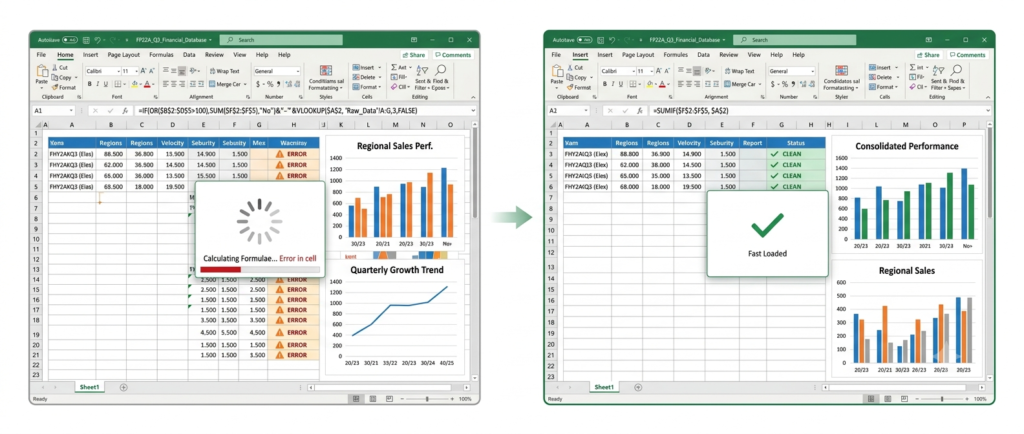
Volatile formulas recalculate every single time anything in the workbook changes, even if their inputs did not change. As a result, a single INDIRECT() referencing 10,000 rows can trigger thousands of unnecessary calculations per second.
Replace OFFSET() and INDIRECT() with INDEX() or direct cell references wherever possible. Similarly, replace TODAY() or NOW() in calculations with a static timestamp updated by a macro only when needed. This change alone can reduce calculation time by 40-60% in formula-heavy files.
Fix 2: Limit Conditional Formatting
Conditional formatting is useful, but Excel stores every rule: including duplicate and conflicting ones even when they are invisible or redundant. Over months of editing, a single sheet can accumulate hundreds of overlapping rules.
Go to Home > Conditional Formatting > Manage Rules and audit every sheet. Delete rules that apply to entire columns (e.g., A:A) and restrict them only to the actual data range (e.g., A2:A500). This straightforward cleanup often cuts rendering time in half.
Fix 3: Break External Links
External links to other workbooks force Excel to re-query source files every time the workbook opens. Moreover, if those source files have moved or been renamed, Excel gets stuck in a retry loop.
Navigate to Data > Edit Links and remove any links that are no longer needed. For links you want to keep, consider pasting values (Ctrl + Alt + V, then Values) and refreshing data manually through a controlled macro instead.
Fix 4: Remove Unused Named Ranges
Named ranges are helpful for readability, but broken or outdated ones create background overhead. Go to Formulas > Name Manager and look for entries marked with errors (#REF!). Delete them all. This is a quick fix with no side effects on your active formulas.
Fix 5: Clean Up Hidden Objects
Invisible shapes, text boxes, and images left from copy-paste operations are one of the most overlooked causes of slow Excel files. They exist on the sheet but are invisible to the eye but yet Excel still renders them.
Press Ctrl + G > Special > Objects to select all objects on the sheet. Delete anything you do not recognize or need. In extreme cases, users have found thousands of hidden objects that inflated a file from 2 MB to over 80 MB.
Fix 6: Optimize PivotTables
PivotTables cache a full copy of source data internally. Therefore, if you have multiple PivotTables referencing the same data source, each one stores its own copy. Consolidate them to share a single cache by creating each additional PivotTable from an existing one (not from the raw data range directly).
Also, disable “Save source data with file” in PivotTable Options when the source data is already in the same workbook.
Fix 7: Switch to Manual Calculation (Strategically)
For large models that do not need to recalculate constantly, keeping Excel in Manual Calculation mode is a practical long-term solution. Use Formulas > Calculation Options > Manual and press F9 only when you are ready to refresh the model.
However, remember to add a visual reminder on the sheet, a colored cell or label indicating that the file is in manual mode. Otherwise, users may act on stale data without realizing it.
Fix 8: Save as .xlsb Format
The .xlsb (Binary Workbook) format stores data in a compressed binary structure instead of XML, which is the format used by the standard .xlsx extension. For large files, switching to .xlsb can reduce file size by up to 75% and dramatically improve open/save speed.
To convert: File > Save As > change the file type to Excel Binary Workbook (.xlsb). Note that .xlsb files have minor limitations (some XML-based add-ins may not be compatible), so test before committing to the format in a shared environment.
When DIY Fixes Are Not Enough
These eight steps solve the majority of slow-workbook problems. However, some workbooks have structural issues rooted in poor initial architecture oversized data models, inefficient VBA code, or the wrong tool being used for the job entirely.
In those situations, patching individual formulas is not enough. A professional review of the file’s structure, calculation logic, and data flow is the right move. Specialists in building custom excel spreadshets can rebuild the core model in a way that scales without the performance debt.
Making sure your Excel workbook performance is at it’s best
A slow Excel workbook is a productivity killer. Fortunately, with the right diagnostic approach and these eight targeted fixes, most files can be brought back to speed without rebuilding from scratch. Start with the diagnostic, apply the high-impact fixes first (volatile formulas and conditional formatting), and work your way through the list systematically.
If you need a workbook that performs reliably at scale, the best path is working with specialists who design for performance from the start. With custom spreadsheets built correctly, you eliminate the need to fix what should never have been broken.
Content produced by Sapphire Business Technology, based on expertise developed across more than 500 satisfied clients in Excel and data automation consulting.