Key takeaways
- Small businesses can manage stock in a custom Excel workbook without expensive software, starting with a Products catalogue that gives every item a unique ID and a reorder level.
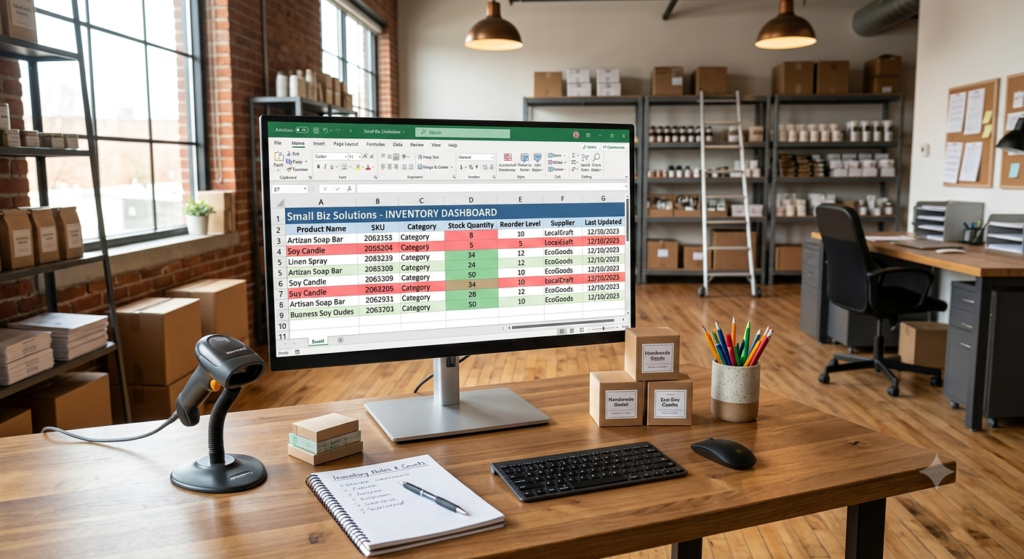
- A Stock Tracker pulls product details from the catalogue with VLOOKUP and uses an IF formula to label each item OK, Low Stock or Out of Stock, colour-coded.
- Separate Suppliers and Purchase Orders sheets record lead times, order costs and delivery status, with a running total showing how much you spend on restocking.
- An “Action Needed” column flags items at or below the reorder level with “Reorder Now”, and a days-of-stock-remaining formula shows how long current stock will last.
Inventory Management on Excel: A Practical Starter Kit for Small Businesses
Running out of stock without warning, over-ordering items that sit unsold, or losing track of which supplier carries what. These are challenges that hit small businesses harder than anyone. And in most cases, the root problem is the same: there is no reliable system for managing inventory.
The good news is that you do not need expensive software to get started. You can build a custom Excel spreadsheet for inventory that gives you real visibility over your stock, helps you avoid costly mistakes, and grows with your business. This tutorial covers everything a small business owner needs to get up and running, step by step, with no prior Excel expertise required.
Setting Up Your Product Catalog Sheet
Before you can track inventory movements, you need a clean, consistent record of what you actually carry. This is your product catalog, the foundation of every other sheet in your workbook. Without this, creating a custom excel spreadsheet for inventory will never be a done job.
Create a new sheet called “Products.” Set up the following columns:
- Product ID (unique identifier, e.g., P001)
- Product Name
- Category
- Unit of Measure (each, box, kg, etc.)
- Purchase Price
- Selling Price
- Supplier Name
- Reorder Level
- Notes
The “Reorder Level” column is especially important. This is the minimum quantity at which you need to place a new order. For example, if you always want at least 10 units of a product in stock before reordering, enter 10 in that field.
Additionally, use data validation on the “Category” column to maintain consistency. Go to Data > Data Validation, choose “List,” and type your category names separated by commas. This prevents duplicate or mistyped categories from contaminating your data later.
Furthermore, assign a unique Product ID to every item. Even if you only have 20 products today, this habit will save significant time as your catalog grows.
Building Your Stock Tracking Sheet
With your product catalog in place, the next step is a live stock tracking sheet. This is where you will monitor current quantities and flag items that are running low.
Create a second sheet called “Stock Tracker.” Include these columns:
- Product ID
- Product Name
- Current Quantity
- Reorder Level
- Status (OK / Low Stock / Out of Stock)
- Last Updated
To populate Product Name and Reorder Level automatically from your catalog, use VLOOKUP:
=VLOOKUP(A2,Products!A:H,2,FALSE)
This pulls the product name from your catalog based on the Product ID. Consequently, you only maintain that information in one place and it flows through automatically.
For the “Status” column, apply an IF formula:
=IF(C2=0,”Out of Stock”,IF(C2<=D2,”Low Stock”,”OK”))
Then use conditional formatting to color-code the status: red for Out of Stock, orange for Low Stock, and green for OK. Therefore, anyone on your team can open the file and immediately know where attention is needed with no formulas and no analysis required.
Creating a Purchase Orders and Supplier Log
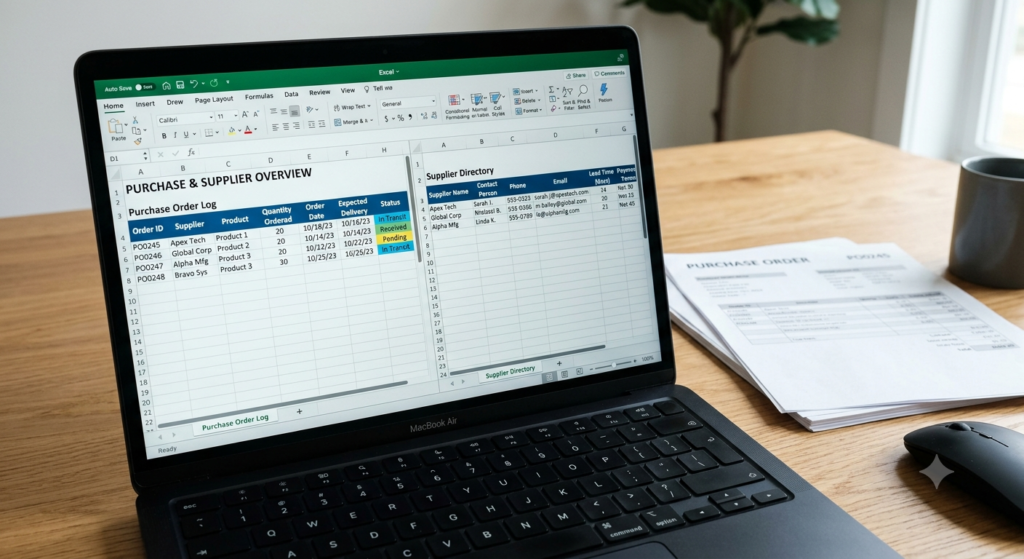
A strong inventory system does not just tell you what you have, it also tells you what is coming and from whom. For that reason, your workbook needs a purchase orders sheet alongside a supplier directory.
Start with a sheet called “Suppliers.” Include:
- Supplier ID
- Supplier Name
- Contact Person
- Phone / Email
- Average Lead Time (days)
- Payment Terms
Next, create a “Purchase Orders” sheet with these columns:
- Order ID
- Supplier ID
- Supplier Name (auto-filled via VLOOKUP from your Suppliers sheet)
- Product ID
- Product Name
- Quantity Ordered
- Unit Cost
- Total Cost (formula: =F2*G2)
- Order Date
- Expected Delivery Date
- Status (Pending / In Transit / Received / Cancelled)
Moreover, use a running total formula at the bottom of the “Total Cost” column to see how much you are spending per month on restocking. This single number gives you meaningful insight into your cost of goods over time.
However, managing purchase orders manually means someone must remember to update statuses consistently. As order volume increases, this becomes the first place errors appear, which is a natural signal that it is time to consider a more automated solution.
Automating Low-Stock Alerts with Conditional Logic
One of the most valuable things on having a custom excel spreadsheet for inventory is that you can add to your inventory workbook an automatic alert system. Instead of checking your stock sheet every day, Excel can highlight the items that need attention immediately.
Return to your “Stock Tracker” sheet. In an empty column to the right, add a helper column called “Action Needed.” Use this formula:
=IF(C2<=D2,”Reorder Now”,””)
This produces a plain-text flag in any row where current quantity is at or below the reorder level. You can then filter this column to show only flagged items and focus your ordering efforts.
Additionally, consider adding a “Days of Stock Remaining” column. If you know how many units you sell per day on average, the formula is straightforward:
=C2/[average_daily_sales]
For example, if you sell roughly 5 units per day and have 30 in stock, you have approximately 6 days before running out. This kind of forward-looking metric is what separates a basic stock count from a true inventory management tool.
Source and Reference
For foundational guidance on small business inventory best practices, the U.S. Small Business Administration (SBA) offers practical resources at: here
Their content on managing business finances and operations pairs well with the Excel system described in this tutorial.
Start Simple, Then Scale Smart
Building a custom Excel spreadsheet for inventory gives any small business owner a real advantage: you know what you have, what you need, and when to act all in one place. The system described in this tutorial covers the essential layers: a product catalog, live stock tracking, supplier management, and automated alerts.
That said, spreadsheets have their limits. As transaction volume grows, maintaining accuracy across multiple sheets becomes increasingly time-consuming. At some point, the spreadsheet that helped you start will need to evolve into something more robust and automated.
Sapphire Business Technology has supported more than 500 businesses in building custom Excel and automation solutions that are fast to use, easy to maintain, and built around how their operations actually work. If your inventory is growing beyond what a basic spreadsheet can handle, our team of specialists can help you design and build exactly what you need.
Content created by Sapphire Business Technology with over 500 satisfied clients and counting.